How to make android apps
How to Build an Android App: A Complete Beginner's Guide
From an empty folder to the Play Store, with nothing skipped in between.
I still remember sitting in front of my laptop the first time I decided to build an Android app. One question kept looping in my head: where do I even start? So I did what everyone does, I opened YouTube. One guy swore by Java. The next video said Java was dead and I should learn Kotlin. A third one told me to skip both and go straight to Flutter. Half an hour in, I hadn't written a single line of code and I was already exhausted. That's the thing nobody warns you about, the options tire you out before the work does.
So this post is my attempt to clear that mess up. Android only, no side quests. I'm going to walk through the whole thing in order, and I'm not skipping the boring parts, because the boring parts are usually where beginners get stuck. By the time you finish reading, "what do I do now" shouldn't be a question anymore.
Alright. Let's get into it.
What You Actually Need to Build an Android App
A lot of people assume you need some monster of a machine, or that there's expensive software involved somewhere. There isn't. Honestly, the list is embarrassingly short:
- A regular computer. Windows, Mac, Linux, doesn't matter, any of them work fine.
- An internet connection, for downloading the tools and looking things up.
- A bit of patience. You're going to hit errors early on. That's not a sign something's wrong, that's just Tuesday.
That's it. Everything else you need is free. So let's talk about the part everyone argues over: the language.
Java or Kotlin? Here's How I'd Decide
There are two main languages for native Android development: Java and Kotlin. Both do the same job. The real difference is in how you write things, not in what you can build.
Java's been around for over twenty years, and plenty of big companies are still sitting on huge Java codebases they're not rewriting anytime soon. That's why Java still shows up in job listings and probably will for a while. But Google made Kotlin the official language for Android, and that decision has teeth. New APIs land in Kotlin first. The docs are written Kotlin-first now. Sample code you find on developer.android.com is almost always Kotlin unless you flip a tab.
So my honest suggestion? If you're starting fresh, start with Kotlin. It's shorter, it catches a whole category of null-related mistakes before you ever run the app, and it just feels less fussy when you're learning. That said, don't stress about picking wrong. I've put both versions of the same code below so you can look at them side by side and decide for yourself.
Which Software Do You Need, and Where Do You Get It?
The official tool is Android Studio. It's one download and it covers everything: you write your code in it, build your layouts in it, and test your app in it. You don't need to install anything alongside it.
- Download link: developer.android.com/studio
- Runs on: ✅ Windows ✅ Mac ✅ Linux — all three, no catch, no separate versions to hunt down.
One thing though. Get it from that official link and nowhere else. Those "free download" mirror sites are a gamble, and a bundled installer that quietly ships malware is not the way you want to start your dev career.
Installing It
Head to the link, hit the big "Download Android Studio" button, and tick the license agreement checkbox. The file's somewhere around 1 to 2 GB, so depending on your connection this is a good time to go make tea.
Once it's done, open the file, .exe on Windows, .dmg on Mac, and click through. The first time you launch Android Studio, a Setup Wizard pops up. Pick Standard and let it do its thing. It'll go off and download the Android SDK on its own, which is the pile of tools that actually compiles and runs your app behind the scenes. Give it five to ten minutes. Longer if your internet is having a bad day.
What an Android Project Actually Looks Like Inside
When you create your first project, Android Studio drops a small mountain of folders on you. Ignore most of it for now. There are two files that matter when you're starting out:
- MainActivity (a
.ktor.javafile) — this is where the logic lives. What happens when someone taps the button, what happens when text changes, all of that gets decided here. - activity_main.xml — this is the visual side. Where the button sits, how big the text is, what's on screen. That's all defined here.
The simplest way I've found to explain it: XML describes what the app looks like, and Kotlin or Java decides what it does. Neither one is an app on its own. You need both.
So What Does the Code Look Like?
Enough describing it, let's just look at some. Here's a tiny example. There's a button, and when you tap it a small message pops up saying "Button Clicked!" Use the tabs above the code to switch between Java, Kotlin, and XML, and the Copy button grabs whichever tab you're currently looking at so you can paste it straight into Android Studio.
public class MainActivity extends AppCompatActivity {

    @Override
    protected void onCreate(Bundle savedInstanceState) {
        super.onCreate(savedInstanceState);
        setContentView(R.layout.activity_main);

        Button myButton = findViewById(R.id.myButton);
        myButton.setOnClickListener(new View.OnClickListener() {
            @Override
            public void onClick(View v) {
                Toast.makeText(MainActivity.this, "Button Clicked!", Toast.LENGTH_SHORT).show();
            }
        });
    }
}
class MainActivity : AppCompatActivity() {
override fun onCreate(savedInstanceState: Bundle?) {
super.onCreate(savedInstanceState)
setContentView(R.layout.activity_main)
val myButton = findViewById<Button>(R.id.myButton)
myButton.setOnClickListener {
Toast.makeText(this, "Button Clicked!", Toast.LENGTH_SHORT).show()
}
}
}<LinearLayout
android:layout_width="match_parent"
android:layout_height="match_parent"
android:orientation="vertical">
<TextView
android:layout_width="wrap_content"
android:layout_height="wrap_content"
android:text="Hello!" />
<Button
android:id="@+id/myButton"
android:layout_width="wrap_content"
android:layout_height="wrap_content"
android:text="Click Me" />
</LinearLayout>Flip between the Java and Kotlin tabs a couple of times and you'll see what I mean. Identical behaviour, different handwriting. Java needs that whole anonymous OnClickListener ceremony just to say "run this when tapped." Kotlin says it with a pair of braces. Fewer lines, less noise, and that's basically the entire reason people call Kotlin friendlier for beginners. The XML is a different animal altogether. There's no logic in there at all, it's closer to a set of instructions for a designer: put a button here, make it this wide, give it this label.
Building the Thing, Step by Step
Here's the full run. Don't jump ahead, don't rush it, just work down the list:
- Pick an idea, a small one. Seriously. Your first app should not be the next Instagram. Build a to-do list. Build a calculator. Something you can finish.
- Install Android Studio the way I described above.
- Be patient on first launch. The Setup Wizard downloads the Android SDK for you. Your only job here is clicking Next.
- Create a new project. Hit "New Project" → pick the Empty Activity template → name it something like MyFirstApp → choose Kotlin or Java → Finish.
- Wait out the Gradle sync. When the project opens you'll see a progress bar chugging away at the bottom. That's Gradle building everything it needs. First run can take two to five minutes. Your computer isn't broken and you didn't break it, this is normal.
- Build the layout. In the left panel, open
res → layout → activity_main.xmland drop in something like the XML above. - Write the logic. Open
MainActivity(.ktfor Kotlin,.javafor Java) and add the code from the tab you picked. - Set up an emulator. Go to "Device Manager" → "Create Device" → pick a phone, a Pixel 6 is a safe bet → Next → Finish. The emulator is a virtual phone running on your computer, so you can test without owning the device.
- Run it. Hit the green ▶️ button up top. The emulator boots, waits around for a bit, and then your app shows up on it.
- Test it. Tap the button. Did the message appear? If something went wrong, Android Studio will yell at you in red at the bottom of the window. Read it. Don't panic, read it. Everyone's first few builds fail, and learning to actually read an error message instead of flinching at it is probably the single most useful habit you'll pick up.
- Now mess with it. Add a second button. Change the colors. Rewrite the text. Break it on purpose and fix it. You'll learn more in an hour of poking at working code than in three hours of tutorials.
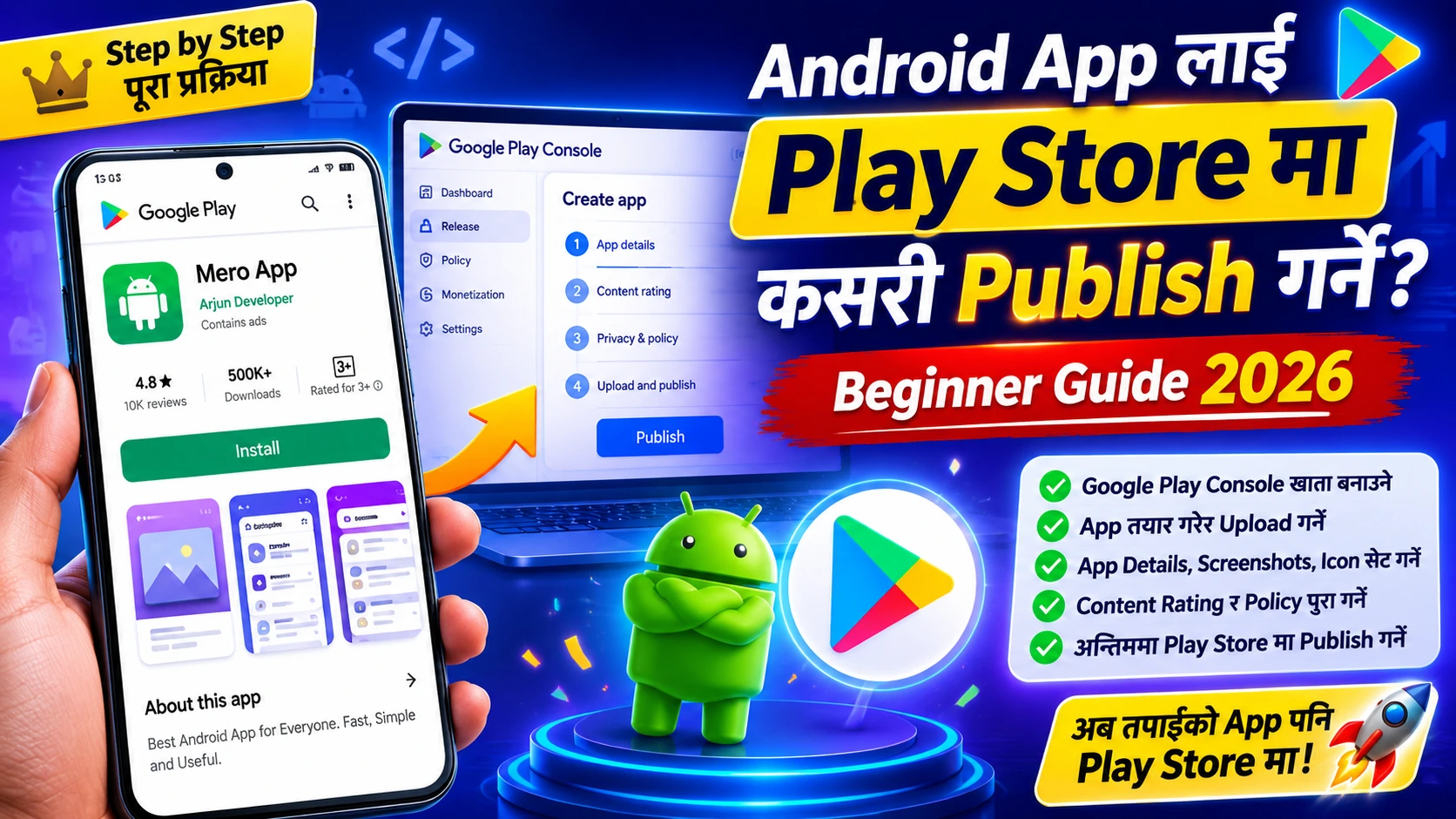
- Publish to the Play Store. Once you've built something you're happy with, you can create a Google Play Console account, there's a one-time $25 fee, and upload your app. Don't do this on day one. Get the app working first. I wrote up the whole publishing process separately, so when you're ready: here's how to publish your app to the Play Store.
Mistakes Almost Everyone Makes at the Start
I'm including this section because I made every single one of these. Not "I've seen people do this." I did them.
- Panicking at the first red error. An error almost never means your code is ruined. Nine times out of ten it's a typo or a missing bracket. Read the message, find the line number, fix it, move on.
- Trying to learn everything at once. Kotlin, Firebase, Material Design, Jetpack Compose, all in week one. I tried this. It doesn't work, you just end up with a shallow layer of confusion across five topics. One thing at a time.
- Copy-pasting without understanding. Copying code while you learn is completely fine, I still do it. But don't move on until you can explain roughly what each line is doing. Otherwise the moment you need to change something, you're stuck staring at code you don't own.
Quick Answers to the Usual Questions
Java or Kotlin?
Kotlin if you're new. It's easier and it's where Google is putting its effort. Knowing some Java still helps when you're job hunting, though, so don't treat it as a closed door.
Can I test on my actual phone instead of the emulator?
Yes, and I'd recommend it. Plug the phone in over USB, turn on Developer Options and USB debugging, and Android Studio will offer your device in the run dropdown. It's faster than the emulator and it behaves like the real thing, because it is the real thing.
How long does building an app take?
Depends entirely on the app. A to-do list? You could have something working in a week. Something with accounts, a backend, and a feed? Months, easily. Early on, aim for understanding rather than speed. The speed comes on its own later.
Can I build an app without coding?
Sort of. Tools like Thunkable and Appy Pie will get you a simple app without writing code. But the moment you want something custom, or something that scales, you'll hit a wall. Learning to code is the version that keeps working long-term.
The Rest Is On You Now
If you've read this far, you've got everything you need to start. What's left is just doing it. Install Android Studio, copy that Kotlin snippet, paste it in, and hit Run. That first "Button Clicked!" popping up on a fake phone on your screen feels sillier than it should, and it's still the best possible place to begin. Every Android developer you admire started exactly there.
And once you've got something working, the next question shows up on its own: how do you actually get it into people's hands? I've covered that end to end in a separate post — how to publish an Android app to the Play Store — so head over there when you're ready.



प्रतिक्रियाहरू (0)